
Quick start guide
In this guide we will go through the following process:
Thesaurus
- Dock - endpoint that belongs to your app or service.
It contains:
- ID
- necessary to subscribe to a Dock in Telegram Bot
- necessary to send API requests
- Secret key
- necessary to send API requests
- Link
- could be opened from Telegram bot
- could be opened from Control Room (see Step1. Creation of a Dock)
- Description
- shown in Telegram bot
- shown in Control Room (see Step1. Creation of a Dock)
Step 1. Creation of a Dock
During this guide we will consider we are developing a service that sends weather forecast to users every day. Let's name it MyWeatherApp.
- Open PingDock Control Room
- Sign in if you haven't yet
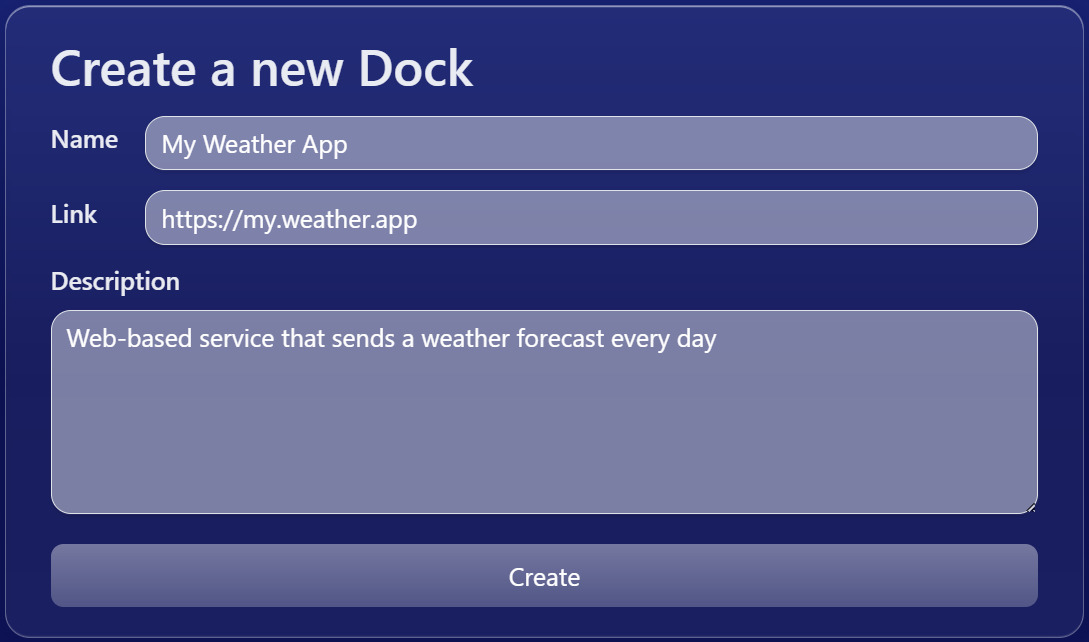
- Now you should see a form named "Create a new Dock"
- Enter a name. For example "My Weather App"
- Optionally, enter a link. For example "https://my.weather.app"
- Set a description. For example "Web-based service that sends a weather forecast every day"
- Click button "Create".
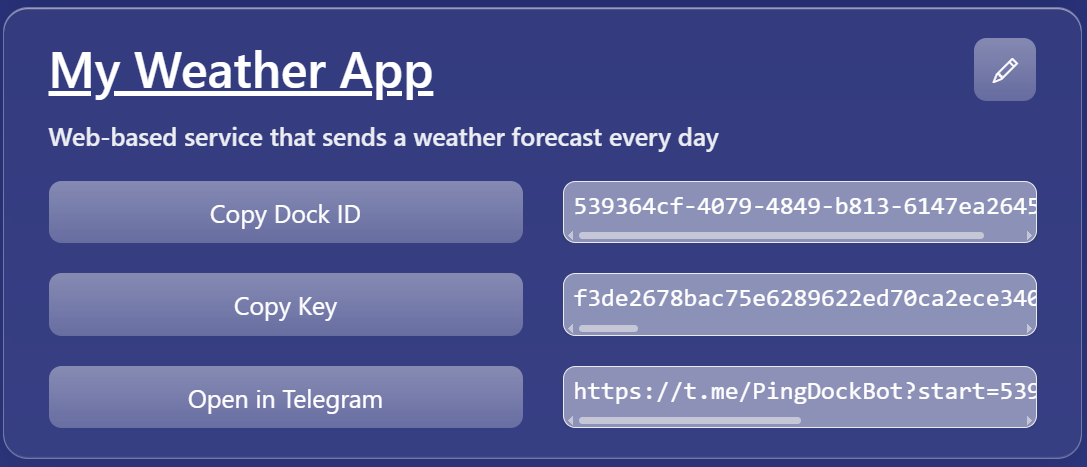
- Now you will see a card with the new Dock
Step 2. Subscribing to the Dock in Telegram
There are multiple options on how to subscribe to the Dock in Telegram bot.
From Control Room
- Press the button
Open in Telegramon your Dock's card.
- It will redirect you in Telegram bot.
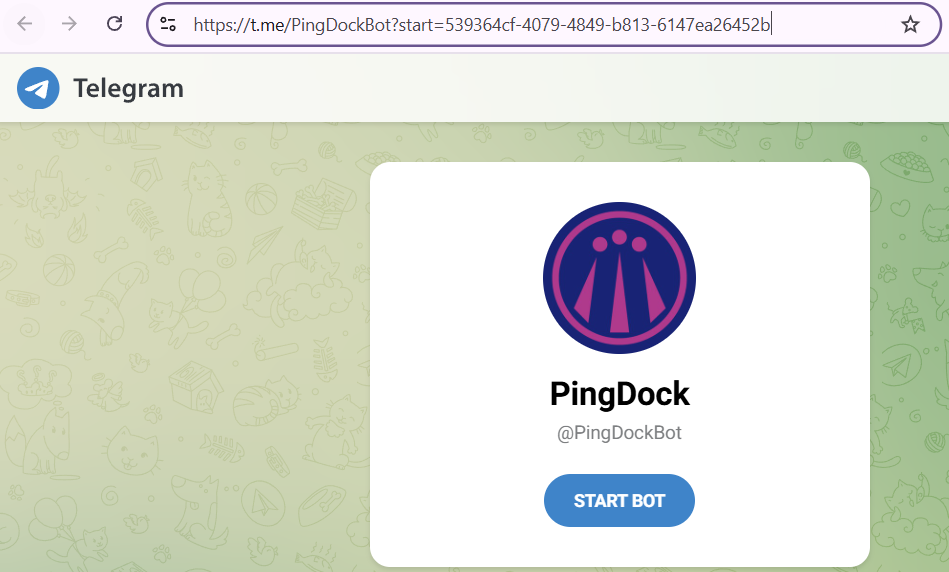
- Open Telegram when your browser asks. You will see the prompt in Telegram bot.
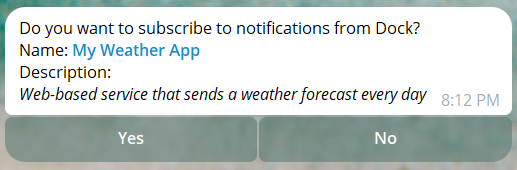
- Press "Yes" to subscribe.
Via link
- Press "Copy Dock ID" button or copy it manually from Control Room.
- Type in the browser https://t.me/PingDockBot?start=<Your Dock's ID>. You will see prompt in Telegram bot.
- Press "Yes" to subscribe.
Manual subscription via bot.
- Press "Copy Dock ID" button or copy it manually from Control Room.
- Open Telegram bot @PingDockBot.
- Press "Subscribe" button.
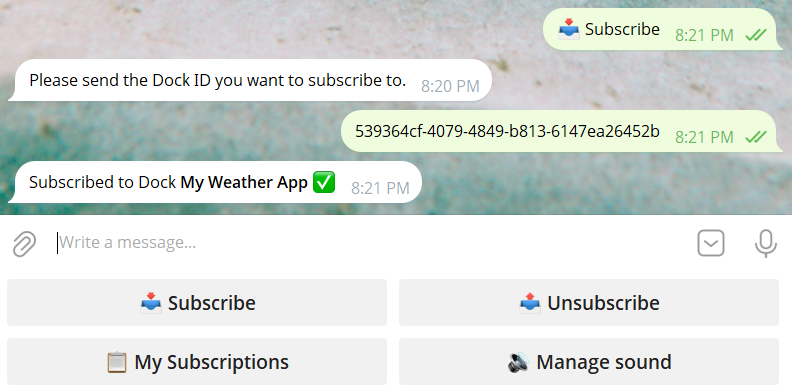
- Paste you Dock's ID when requested.
- You are subscribed.
Step 3. Sending simple POST request via command line
Windows
- Copy
Dock IDandSecret Keyfrom Control Room.
- Prepare this command by pasting
Dock IDandSecret Key. Enter your message.
cmd
curl -X POST https://api.pingdock.io/ping ^
  -H "Content-Type: application/json" ^
  -d "{\"dock_id\":\"<Dock ID>\", \"secret_key\":\"<Dock Secert Key>\", \"msg\":\"<Message>\"}"
Message example:
Today: Sunny ☀️\nTemp: +24℃- Open
cmd - Paste the prepared command and press Enter.
- You should now see a new message appear in your Telegram bot.
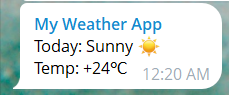
To learn more about message format, please refer message format page
Linux
- Copy
Dock IDandSecret Keyfrom Control Room.
- Prepare this command by pasting
Dock IDandSecret Key. Enter your message.
cmd
curl -X POST https://api.pingdock.io/ping \
  -H "Content-Type: application/json" \
  -d "{\"dock_id\":\"<Dock ID>\", \"secret_key\":\"<Dock Secret Key>\", \"msg\":\"<Message>\"}"
Message example:
Today: Sunny ☀️\nTemp: +24℃- Open
Terminal(macOS) or your Linuxshell. - Paste the prepared command and press Enter.
- You should now see a new message appear in your Telegram bot.